Overwatch | How To Turn Off Motion Controls / Gyro Aiming
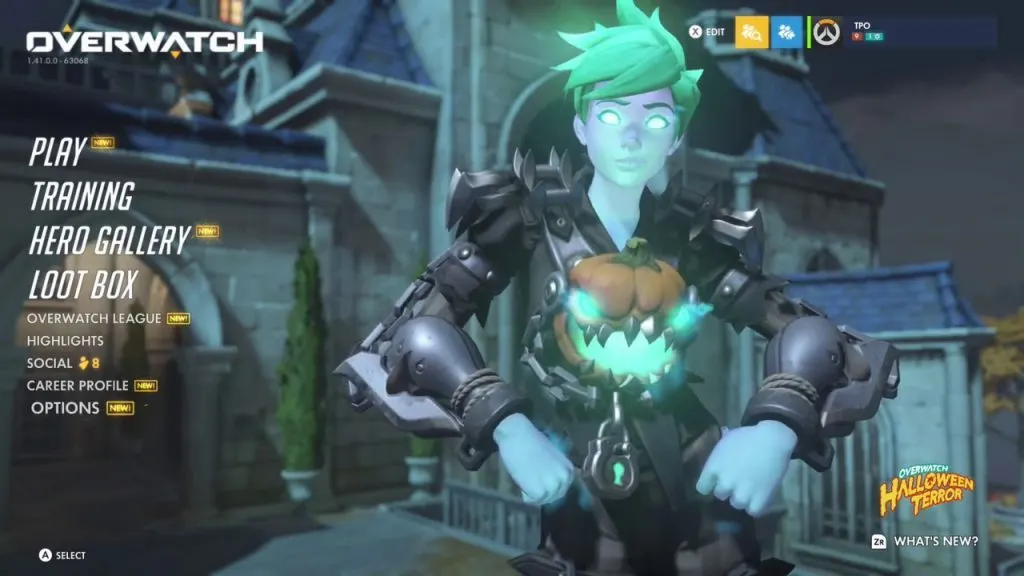
Overwatch 2 is a fast-paced first-person shooter video game from Blizzard Entertainment. Its release marks the end of all servers for its predecessor. If you’re a newcomer to the franchise, choosing the right controls can be a bit tricky for this fast-paced shooter. Don’t worry, check out our guide to find the best controller settings for Overwatch 2.
Briefly showing you guys new to Overwatch on the Nintendo switch how to disable or turn off the motion controls on the game which is call gyro aiming.

The best controller settings for Overwatch 2.
We’ve compiled all the most suitable and efficient controller settings for gamers. We have divided it into three main criteria and they are:
- Aiming settings
- Gyroscope settings
- Reticle settings
Gyro settings
Gyro orientation: Off
Gyro pointing assist: On
Gyro Presets gyro option: Custom
Advanced
Invert gyro pitch axis: Disabled
Invert gyro yaw axis: On
Invert gyro roll axis: Disabled
Gyro pitch axis sensitivity: 0
Gyro YAW axis sensitivity: 75
ROLL axis sensitivity: 30
Disable Gyro while using the Stick: On
Did you like the video? Follow our community and add your comments below…
Top bonuses
18+ | Gambling can be addictive. Play responsibly. T&Cs apply. We may earn a commission from links marked as ads. Get help
Since February 2026 the game is called just "Overwatch" again (no "2").
OWCS World Finals 2026 · 02.–06.12.2026 Results, events & betting guide →